

 Set up docs MCP
Это руководство по настройке Neon Postgres, который можно использовать для репликации в ClickPipes. Убедитесь, что перед началом настройки вы вошли в консоль Neon.
Создание пользователя с правами доступа
Подключитесь к своему экземпляру Neon с правами администратора и выполните следующие команды:
-
Создайте отдельного пользователя для ClickPipes:
CREATE USER clickpipes_user PASSWORD 'some-password'; -
Предоставьте пользователю, созданному на предыдущем шаге, доступ только для чтения на уровне схемы. В следующем примере показаны разрешения для схемы
public. Повторите эти команды для каждой схемы, содержащей таблицы, которые вы хотите реплицировать:GRANT USAGE ON SCHEMA "public" TO clickpipes_user; GRANT SELECT ON ALL TABLES IN SCHEMA "public" TO clickpipes_user; ALTER DEFAULT PRIVILEGES IN SCHEMA "public" GRANT SELECT ON TABLES TO clickpipes_user; -
Предоставьте пользователю права на репликацию:
ALTER USER clickpipes_user WITH REPLICATION; -
Создайте публикацию с таблицами, которые вы хотите реплицировать. Мы настоятельно рекомендуем включать в публикацию только нужные таблицы, чтобы избежать излишних накладных расходов на производительность.
-
Чтобы создать публикацию для определённых таблиц:
CREATE PUBLICATION clickpipes FOR TABLE table_to_replicate, table_to_replicate2;-
Чтобы создать публикацию для всех таблиц в определённой схеме:
CREATE PUBLICATION clickpipes FOR TABLES IN SCHEMA "public";
-
Публикация clickpipes определяет набор таблиц, события изменений в которых будут передаваться в ClickPipes. Мы не рекомендуем использовать FOR ALL TABLES, если только вы не собираетесь реплицировать каждую таблицу, поскольку включение ненужных таблиц увеличивает WAL-трафик из Postgres в ClickPipes и снижает общую эффективность репликации.
Включите логическую репликацию
В Neon логическую репликацию можно включить в интерфейсе. Это необходимо, чтобы CDC в ClickPipes могла реплицировать данные. Перейдите на вкладку Settings, а затем в раздел Logical Replication.
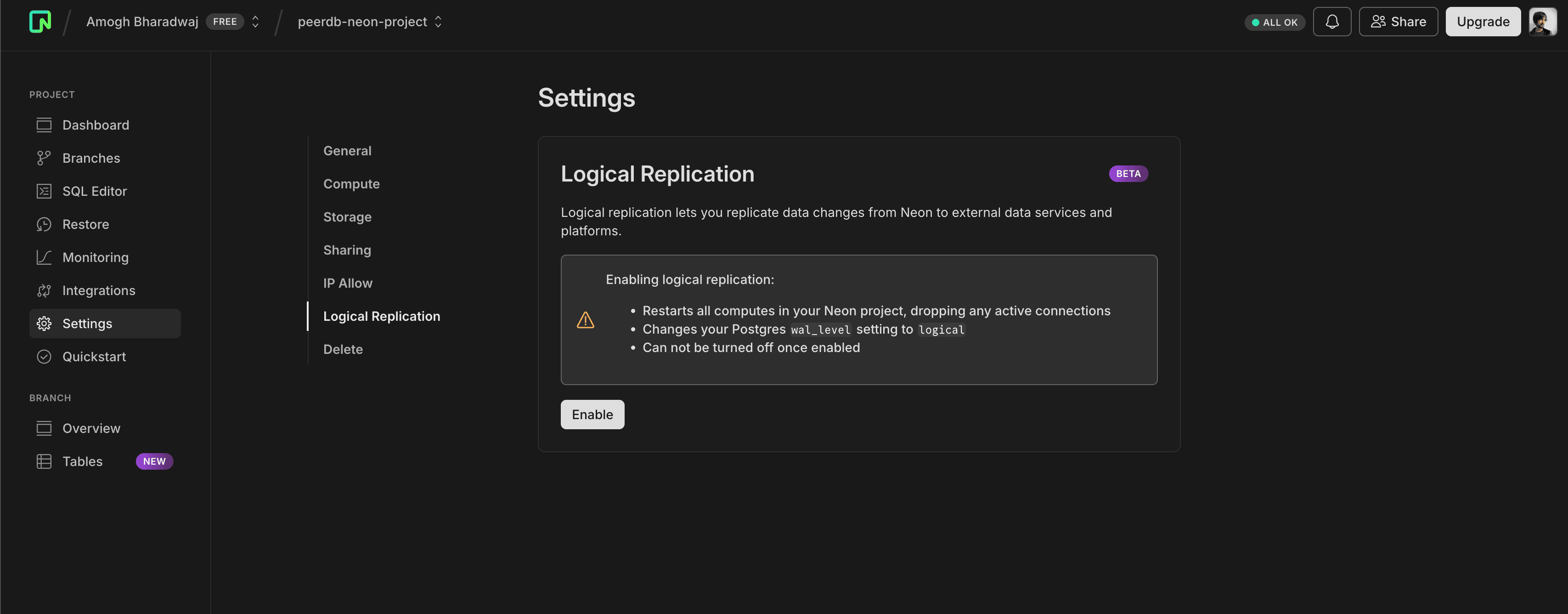
Нажмите Enable, чтобы завершить этот шаг. После включения должно появиться приведённое ниже сообщение об успешном выполнении.
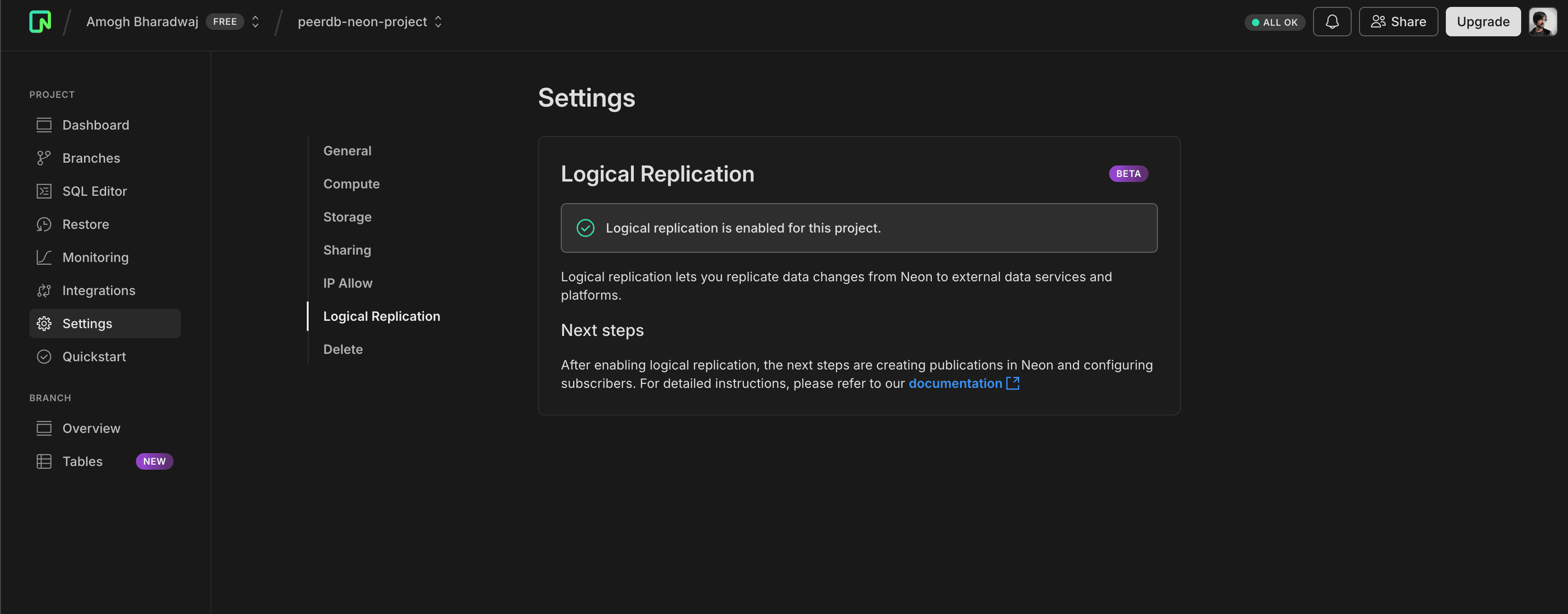
Проверим указанные ниже настройки в вашем экземпляре Neon Postgres:
SHOW wal_level; -- should be logical
SHOW max_wal_senders; -- should be 10
SHOW max_replication_slots; -- should be 10
Добавление IP-адресов в список разрешённых (для плана Neon Enterprise)
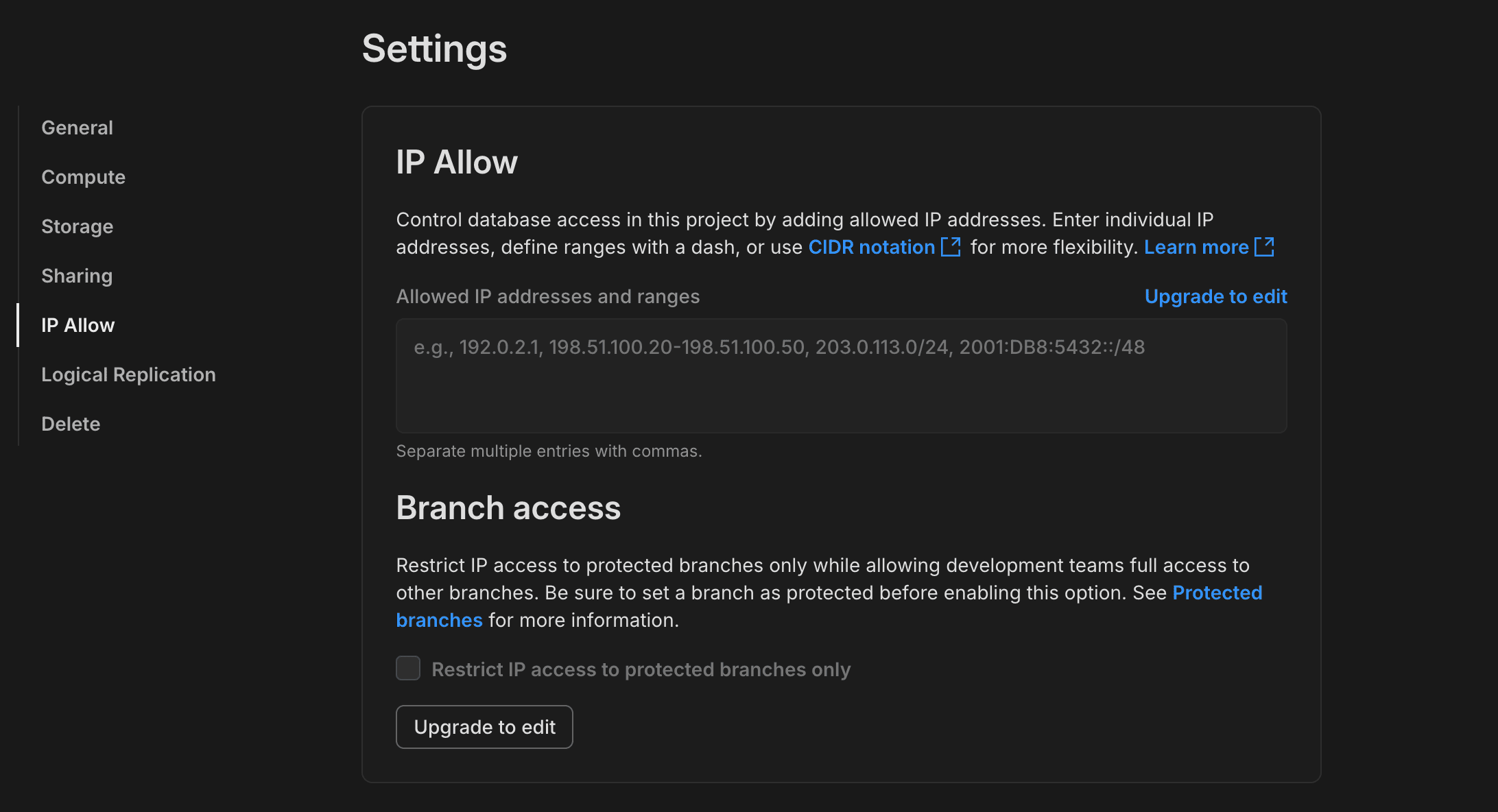
Если у вас план Neon Enterprise, вы можете добавить IP-адреса ClickPipes в список разрешённых, чтобы разрешить репликацию из ClickPipes в ваш экземпляр Neon Postgres. Для этого откройте вкладку Settings и перейдите в раздел IP Allow.
Скопируйте сведения о подключении
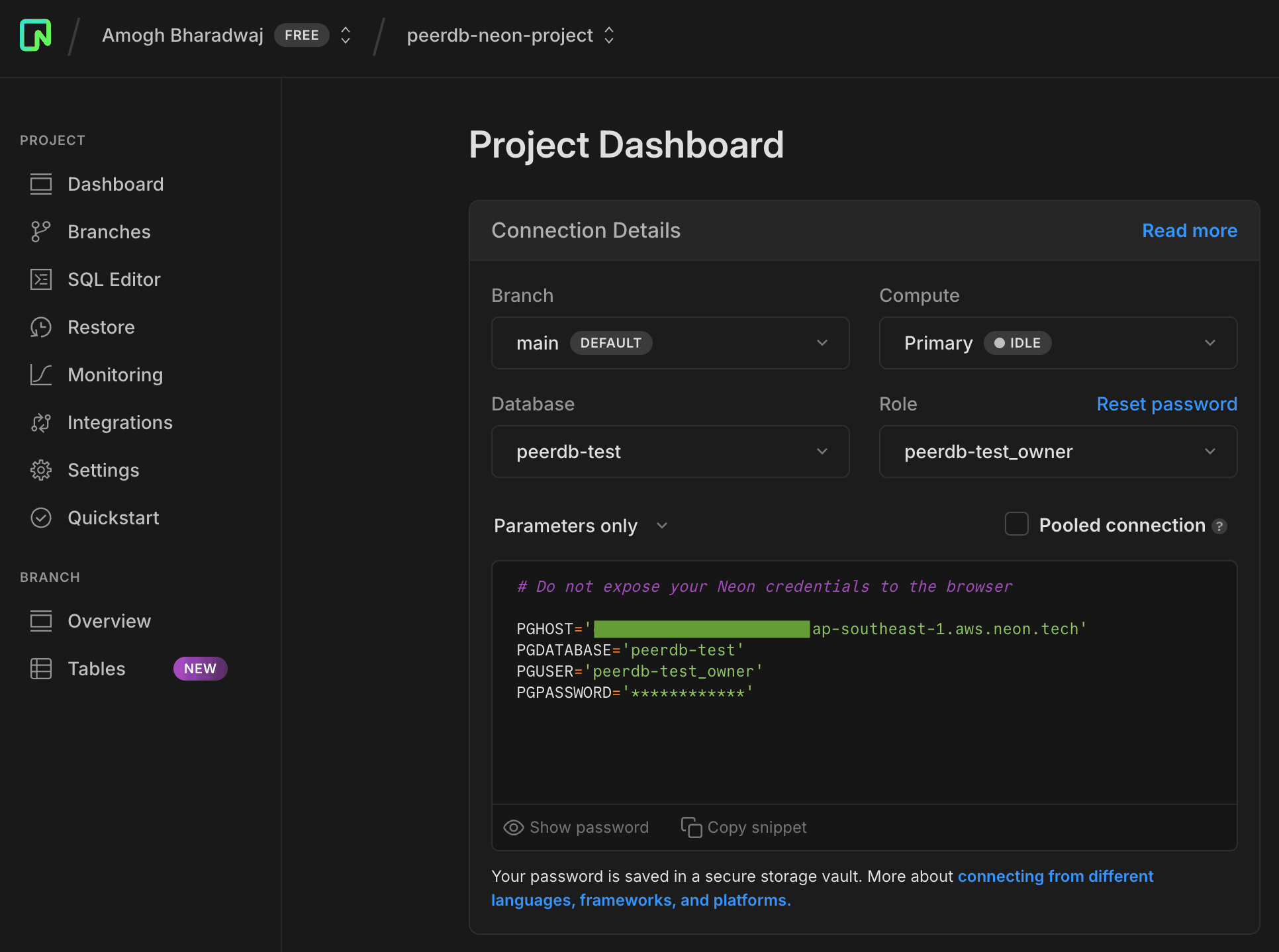
Теперь, когда пользователь создан, публикация готова и репликация включена, можно скопировать сведения о подключении, чтобы создать новый ClickPipe. Перейдите на Панель мониторинга и в текстовом поле, где отображается строка подключения, переключите режим просмотра на Только параметры. Эти параметры понадобятся на следующем шаге.
Что дальше?
Теперь вы можете создать свой ClickPipe и начать приём данных из вашего экземпляра Postgres в ClickHouse Cloud. Обязательно сохраните сведения о подключении, которые вы использовали при настройке экземпляра Postgres, так как они понадобятся вам при создании ClickPipe.