

 Set up docs MCP
Это руководство о том, как настроить Supabase Postgres для работы с ClickPipes.
Создание пользователя с разрешениями и слотом репликации
Подключитесь к своему экземпляру Supabase под пользователем-администратором и выполните следующие команды:
-
Создайте отдельного пользователя для ClickPipes:
CREATE USER clickpipes_user PASSWORD 'some-password'; -
Предоставьте пользователю, созданному на предыдущем шаге, доступ к схеме в режиме только для чтения. В следующем примере показаны разрешения для схемы
public. Повторите эти команды для каждой схемы, содержащей таблицы, которые вы хотите реплицировать:GRANT USAGE ON SCHEMA "public" TO clickpipes_user; GRANT SELECT ON ALL TABLES IN SCHEMA "public" TO clickpipes_user; ALTER DEFAULT PRIVILEGES IN SCHEMA "public" GRANT SELECT ON TABLES TO clickpipes_user; -
Предоставьте пользователю привилегии репликации:
ALTER USER clickpipes_user WITH REPLICATION; -
Создайте публикацию с таблицами, которые вы хотите реплицировать. Мы настоятельно рекомендуем включать в публикацию только необходимые таблицы, чтобы избежать лишних накладных расходов на производительность.
-
Чтобы создать публикацию для конкретных таблиц:
CREATE PUBLICATION clickpipes FOR TABLE table_to_replicate, table_to_replicate2;-
Чтобы создать публикацию для всех таблиц в определённой схеме:
CREATE PUBLICATION clickpipes FOR TABLES IN SCHEMA "public";
-
Публикация clickpipes определяет набор таблиц, события изменений из которых будут передаваться в ClickPipes. Мы не рекомендуем использовать FOR ALL TABLES, если только вы не планируете реплицировать все таблицы, поскольку включение лишних таблиц увеличивает объём WAL-трафика из Postgres в ClickPipes и снижает общую эффективность репликации.
Увеличьте max_slot_wal_keep_size
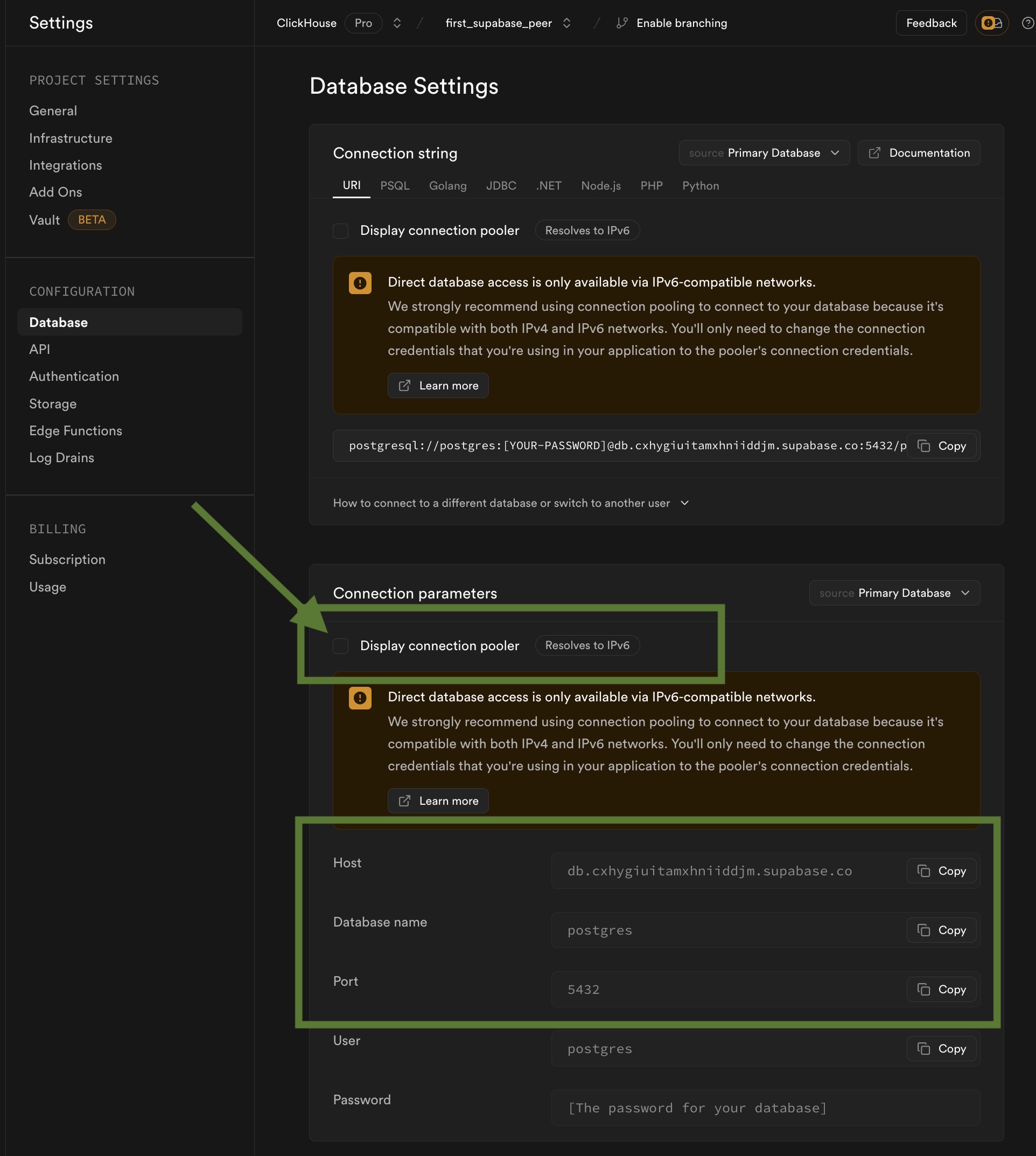
Сведения о подключении для Supabase
Перейдите в Project Settings проекта Supabase -> Database (в разделе Configuration).
Важно: На этой странице отключите Display connection pooler, затем перейдите к разделу Connection parameters и запишите или скопируйте параметры.
Примечание о RLS
Пользователь ClickPipes в Postgres не должен подпадать под действие политик RLS, так как это может привести к потере данных. Вы можете отключить политики RLS для этого пользователя, выполнив приведённую ниже команду:
ALTER USER clickpipes_user BYPASSRLS;Что дальше?
Теперь вы можете создать свой ClickPipe и начать приём данных из вашего экземпляра Postgres в ClickHouse Cloud. Обязательно сохраните сведения о подключении, которые вы использовали при настройке экземпляра Postgres, так как они понадобятся вам при создании ClickPipe.