

 Set up docs MCP
ClickPipes 支持 Postgres 12 及以上版本。
启用逻辑复制
Crunchy Bridge 默认已启用逻辑复制。请确保以下设置配置正确;如未正确配置,请按需调整。
SHOW wal_level; -- 应为 logical
SHOW max_wal_senders; -- 应为 10
SHOW max_replication_slots; -- 应为 10
创建 ClickPipes 用户并授予权限
使用 postgres 用户连接到您的 Crunchy Bridge Postgres,并运行以下命令:
-
为 ClickPipes 创建一个专用用户:
CREATE USER clickpipes_user PASSWORD 'some-password'; -
向上一步创建的用户授予 schema 级的只读访问权限。以下示例展示的是
publicschema 的权限。对于每个包含您要复制的表的 schema,都需要重复执行这些命令:GRANT USAGE ON SCHEMA "public" TO clickpipes_user; GRANT SELECT ON ALL TABLES IN SCHEMA "public" TO clickpipes_user; ALTER DEFAULT PRIVILEGES IN SCHEMA "public" GRANT SELECT ON TABLES TO clickpipes_user; -
向该用户授予复制权限:
ALTER USER clickpipes_user WITH REPLICATION; -
使用您要复制的表创建一个 publication。我们强烈建议仅将所需的表包含在 publication 中,以避免额外的性能开销。
-
为特定表创建 publication:
CREATE PUBLICATION clickpipes FOR TABLE table_to_replicate, table_to_replicate2;-
为特定 schema 中的所有表创建 publication:
CREATE PUBLICATION clickpipes FOR TABLES IN SCHEMA "public";
-
clickpipes publication 定义了其变更事件将流式传输到 ClickPipes 的那组表。除非您确实打算复制每一张表,否则我们不建议使用 FOR ALL TABLES,因为包含不必要的表会增加从 Postgres 到 ClickPipes 的 WAL 流量,并降低整体复制效率。
将 ClickPipes IP 加入允许列表
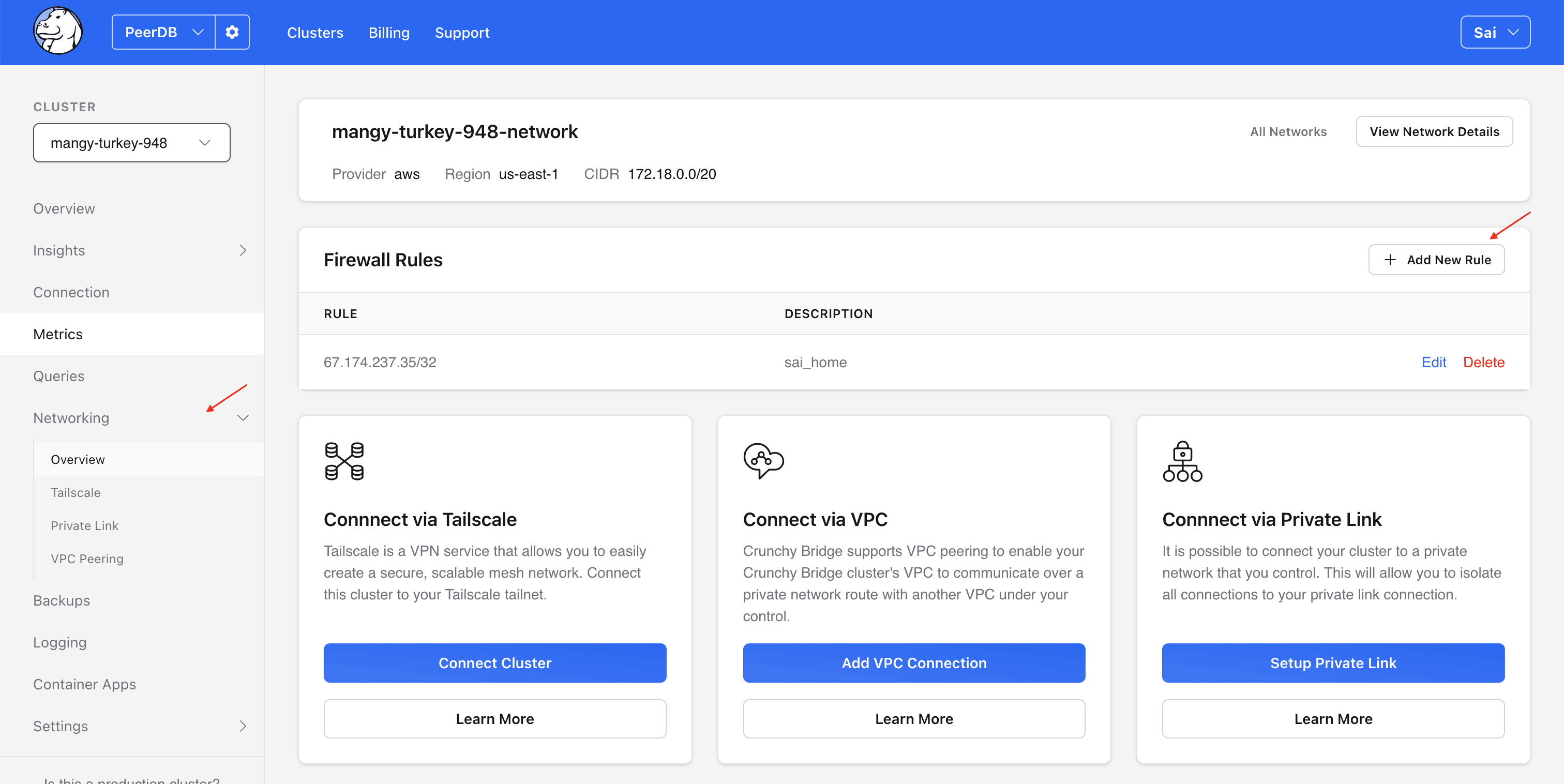
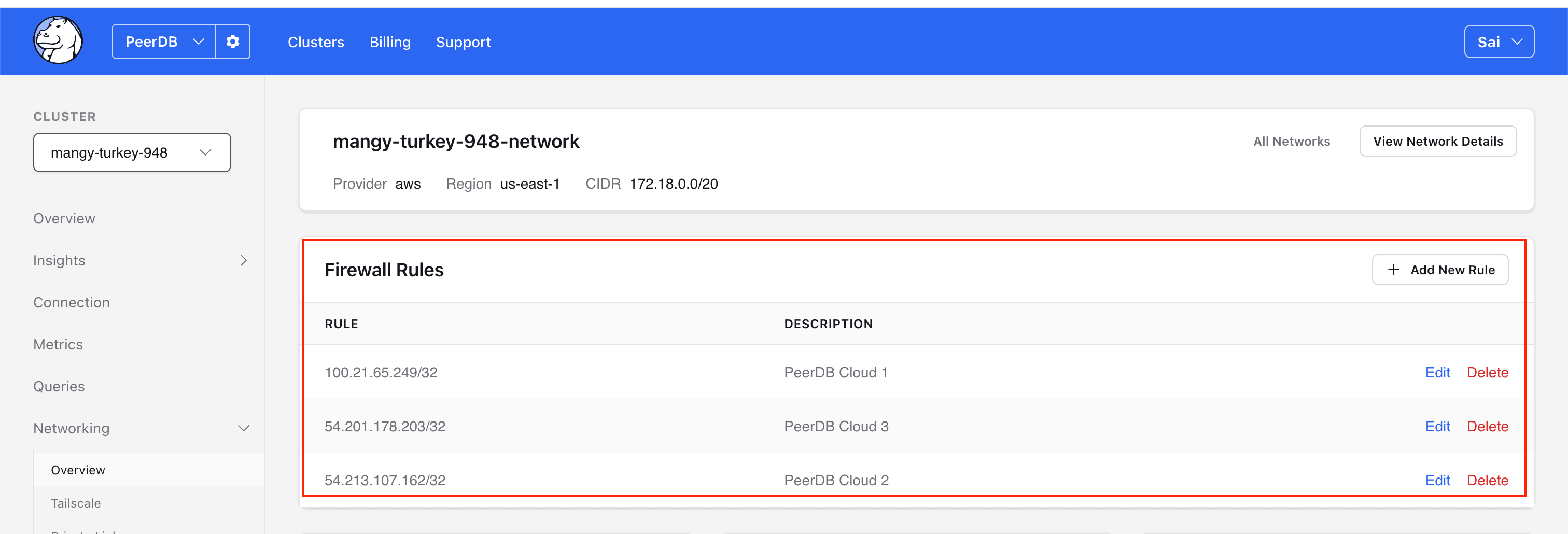
在 Crunchy Bridge 中添加防火墙规则,将 ClickPipes IP 加入允许列表。
接下来做什么?
现在,您可以创建 ClickPipe,并开始将 Postgres 实例中的数据摄取到 ClickHouse Cloud。 请务必记下您在设置 Postgres 实例时使用的连接信息,因为在创建 ClickPipe 的过程中会用到这些信息。