

 Set up docs MCP
The BigQuery to ClickHouse template is a batch pipeline that ingests data from a BigQuery table into a ClickHouse table. The template can read the entire table or filter specific records using a provided SQL query.
Pipeline requirements
- The source BigQuery table must exist.
- The target ClickHouse table must exist.
- The ClickHouse host must be accessible from the Dataflow worker machines.
Template parameters
| Parameter Name | Parameter Description | Required | Notes |
|---|---|---|---|
jdbcUrl |
The ClickHouse JDBC URL in the format jdbc:clickhouse://<host>:<port>/<schema>. |
✅ | Don’t add the username and password as JDBC options. Any other JDBC option could be added at the end of the JDBC URL. For ClickHouse Cloud users, add ssl=true&sslmode=NONE to the jdbcUrl. |
clickHouseUsername |
The ClickHouse username to authenticate with. | ✅ | |
clickHousePassword |
The ClickHouse password to authenticate with. | ✅ | |
clickHouseTable |
The target ClickHouse table into which data will be inserted. | ✅ | |
maxInsertBlockSize |
The maximum block size for insertion, if we control the creation of blocks for insertion (ClickHouseIO option). | A ClickHouseIO option. |
|
insertDistributedSync |
If setting is enabled, insert query into distributed waits until data will be sent to all nodes in cluster. (ClickHouseIO option). | A ClickHouseIO option. |
|
insertQuorum |
For INSERT queries in the replicated table, wait writing for the specified number of replicas and linearize the addition of the data. 0 - disabled. | A ClickHouseIO option. This setting is disabled in default server settings. |
|
insertDeduplicate |
For INSERT queries in the replicated table, specifies that deduplication of inserting blocks should be performed. | A ClickHouseIO option. |
|
maxRetries |
Maximum number of retries per insert. | A ClickHouseIO option. |
|
InputTableSpec |
The BigQuery table to read from. Specify either inputTableSpec or query. When both are set, the query parameter takes precedence. Example: <BIGQUERY_PROJECT>:<DATASET_NAME>.<INPUT_TABLE>. |
Reads data directly from BigQuery storage using the BigQuery Storage Read API. Be aware of the Storage Read API limitations. | |
outputDeadletterTable |
The BigQuery table for messages that failed to reach the output table. If a table doesn’t exist, it is created during pipeline execution. If not specified, <outputTableSpec>_error_records is used. For example, <PROJECT_ID>:<DATASET_NAME>.<DEADLETTER_TABLE>. |
||
query |
The SQL query to use to read data from BigQuery. If the BigQuery dataset is in a different project than the Dataflow job, specify the full dataset name in the SQL query, for example: <PROJECT_ID>.<DATASET_NAME>.<TABLE_NAME>. Defaults to GoogleSQL unless useLegacySql is true. |
You must specify either inputTableSpec or query. If you set both parameters, the template uses the query parameter. Example: SELECT * FROM sampledb.sample_table. |
|
useLegacySql |
Set to true to use legacy SQL. This parameter only applies when using the query parameter. Defaults to false. |
||
queryLocation |
Needed when reading from an authorized view without the underlying table’s permission. For example, US. |
||
queryTempDataset |
Set an existing dataset to create the temporary table to store the results of the query. For example, temp_dataset. |
||
KMSEncryptionKey |
If reading from BigQuery using the query source, use this Cloud KMS key to encrypt any temporary tables created. For example, projects/your-project/locations/global/keyRings/your-keyring/cryptoKeys/your-key. |
Source and target tables schema
To effectively load the BigQuery dataset into ClickHouse, the pipeline performs a column inference process with the following phases:
- The templates build a schema object based on the target ClickHouse table.
- The templates iterate over the BigQuery dataset, and attempts to match columns based on their names.
Data type mapping
The BigQuery types are converted based on your ClickHouse table definition. Therefore, the above table lists the recommended mapping you should have in your target ClickHouse table (for a given BigQuery table/query):
| BigQuery Type | ClickHouse Type | Notes |
|---|---|---|
| Array Type | Array Type | The inner type must be one of the supported primitive data types listed in this table. |
| Boolean Type | Bool Type | |
| Date Type | Date Type | |
| Datetime Type | Datetime Type | Works as well with Enum8, Enum16 and FixedString. |
| String Type | String Type | In BigQuery all Int types (INT, SMALLINT, INTEGER, BIGINT, TINYINT, BYTEINT) are aliases to INT64. We recommend you setting in ClickHouse the right Integer size, as the template will convert the column based on the defined column type (Int8, Int16, Int32, Int64). |
| Numeric - Integer Types | Integer Types | In BigQuery all Int types (INT, SMALLINT, INTEGER, BIGINT, TINYINT, BYTEINT) are aliases to INT64. We recommend you setting in ClickHouse the right Integer size, as the template will convert the column based on the defined column type (Int8, Int16, Int32, Int64). The template will also convert unassigned Int types if used in ClickHouse table (UInt8, UInt16, UInt32, UInt64). |
| Numeric - Float Types | Float Types | Supported ClickHouse types: Float32 and Float64 |
Running the Template
The BigQuery to ClickHouse template is available for execution via the Google Cloud CLI.
Sign in to your Google Cloud Console and search for DataFlow.
- Press the
CREATE JOB FROM TEMPLATEbutton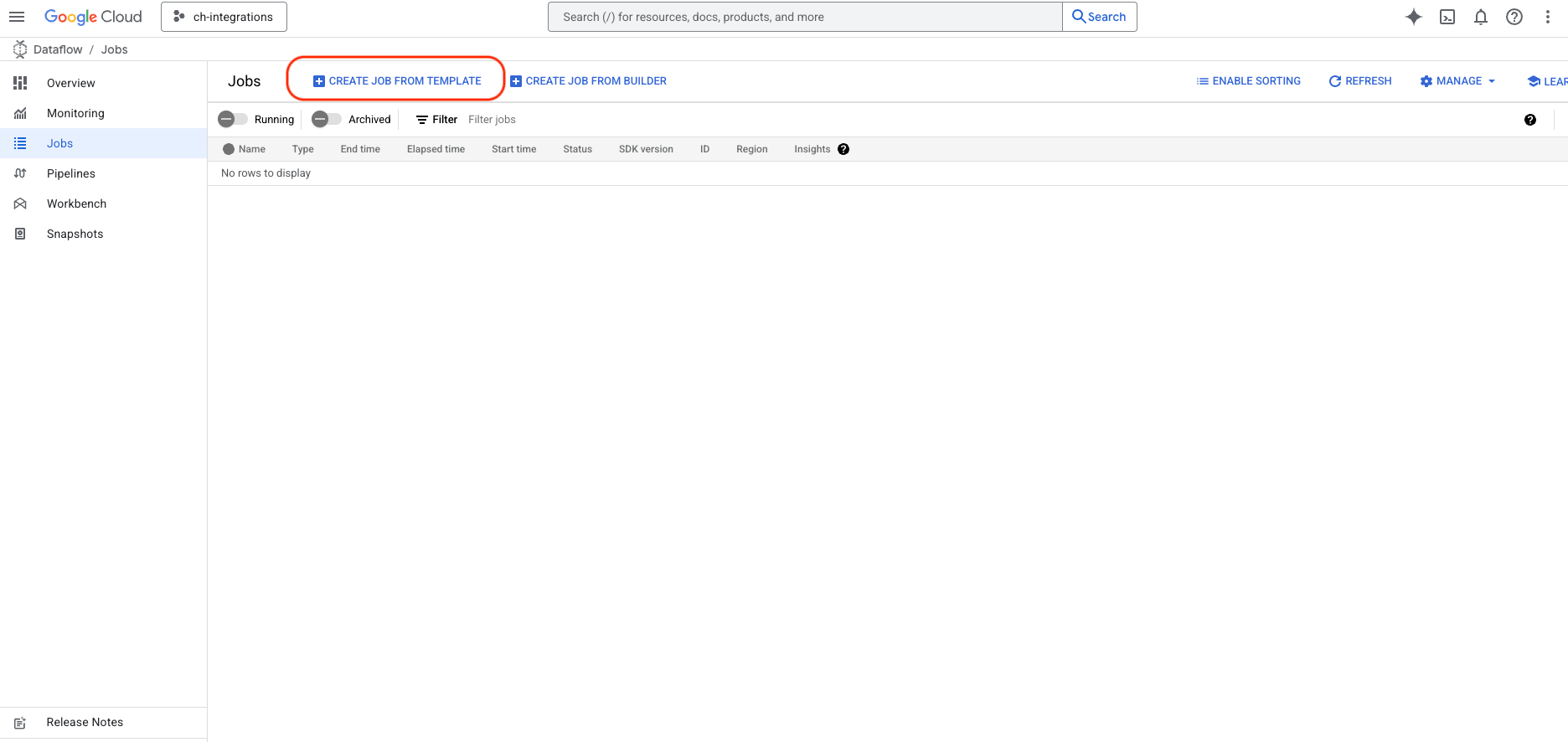
- Once the template form is open, enter a job name and select the desired region.
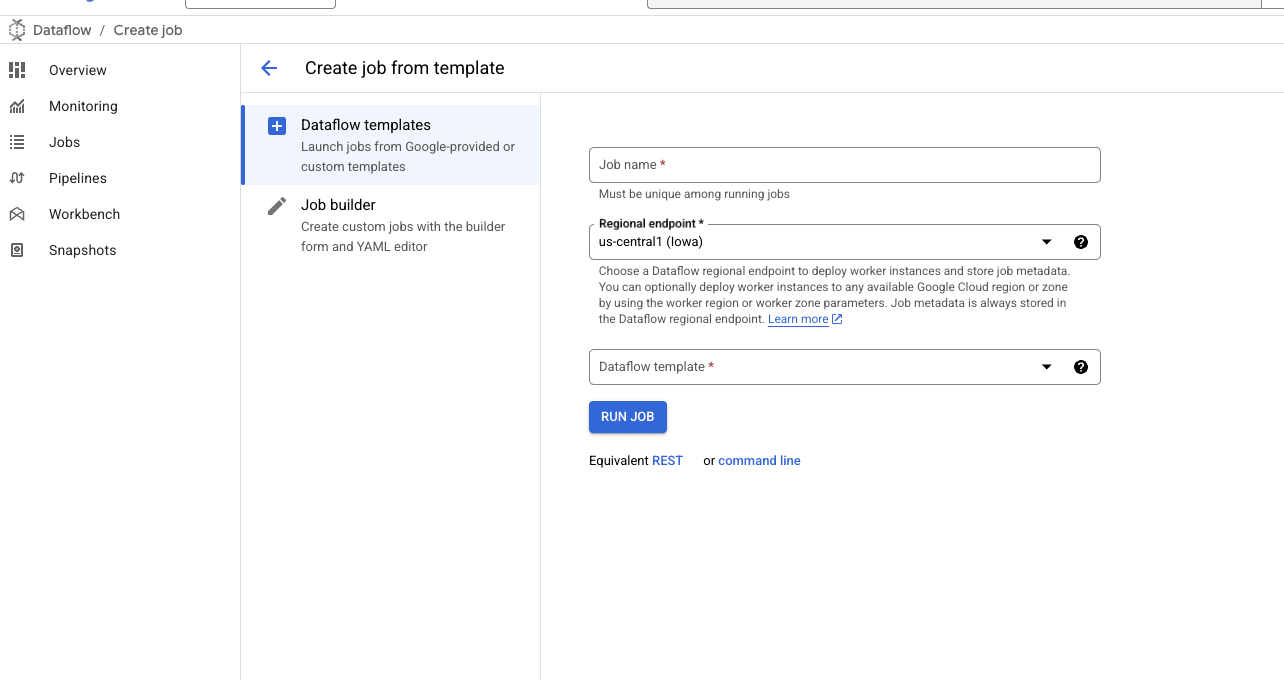
- In the
DataFlow Templateinput, typeClickHouseorBigQuery, and select theBigQuery to ClickHousetemplate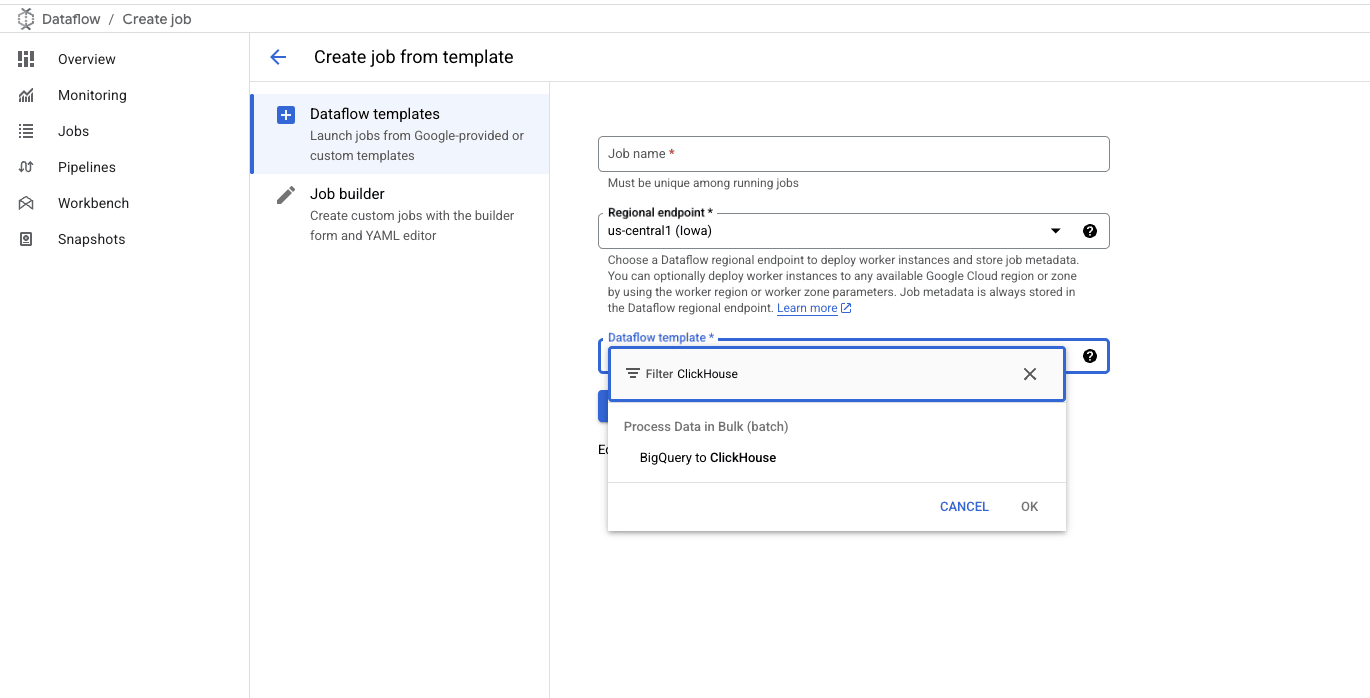
- Once selected, the form will expand to allow you to provide additional details:
- The ClickHouse server JDBC url, with the following format
jdbc:clickhouse://host:port/schema. - The ClickHouse username.
- The ClickHouse target table name.
- The ClickHouse server JDBC url, with the following format
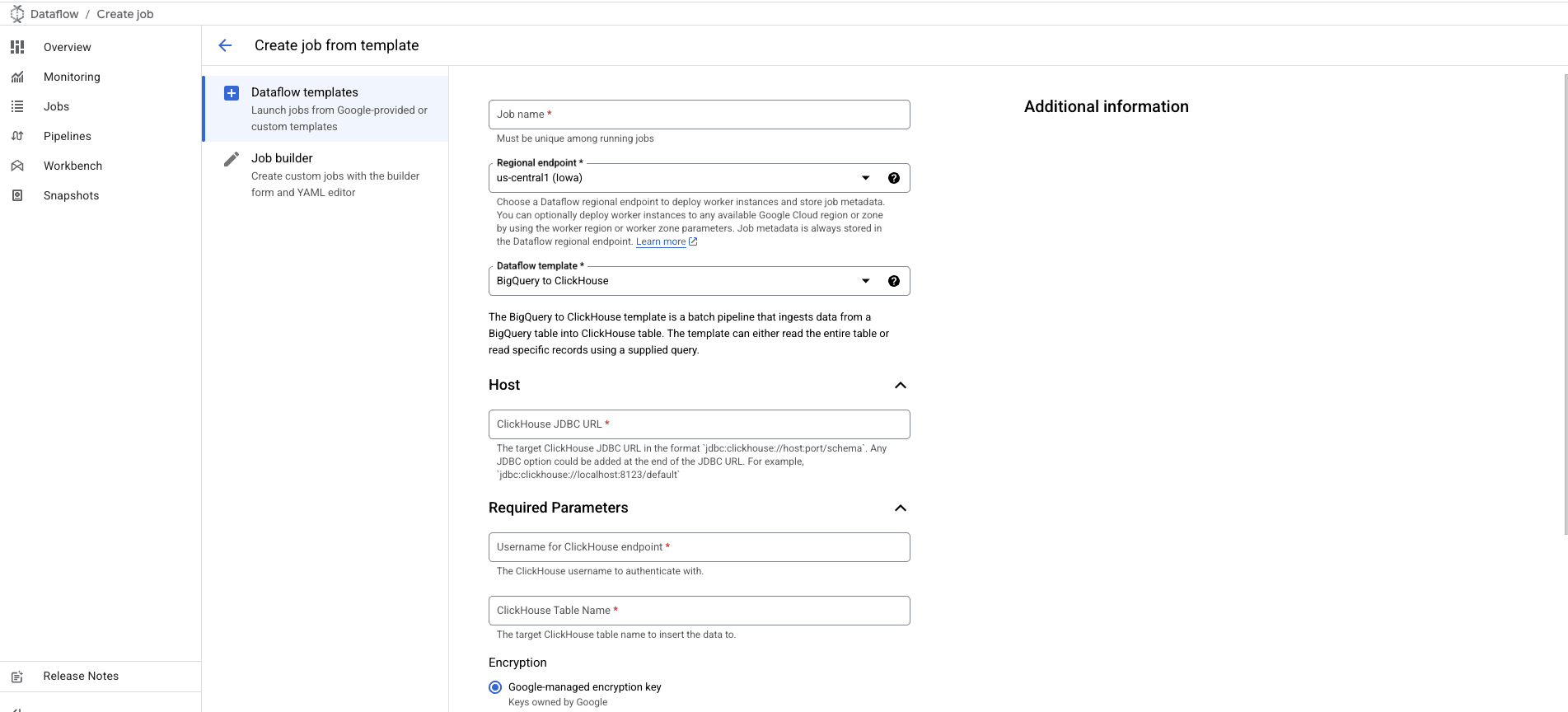
- Customize and add any BigQuery/ClickHouseIO related configurations, as detailed in the Template Parameters section
Install & Configure gcloud CLI
- If not already installed, install the
gcloudCLI. - Follow the
Before you beginsection in this guide to set up the required configurations, settings, and permissions for running the DataFlow template.
Run command
Use the gcloud dataflow flex-template run
command to run a Dataflow job that uses the Flex Template.
Below is an example of the command:
gcloud dataflow flex-template run "bigquery-clickhouse-dataflow-$(date +%Y%m%d-%H%M%S)" \
 --template-file-gcs-location "gs://clickhouse-dataflow-templates/bigquery-clickhouse-metadata.json" \
 --parameters inputTableSpec="<bigquery table id>",jdbcUrl="jdbc:clickhouse://<clickhouse host>:<clickhouse port>/<schema>?ssl=true&sslmode=NONE",clickHouseUsername="<username>",clickHousePassword="<password>",clickHouseTable="<clickhouse target table>"
Command breakdown
- Job Name: The text following the
runkeyword is the unique job name. - Template File: The JSON file specified by
--template-file-gcs-locationdefines the template structure and details about the accepted parameters. The mention file path is public and ready to use. - Parameters: Parameters are separated by commas. For string-based parameters, enclose the values in double quotes.
Expected response
After running the command, you should see a response similar to the following:
job:
  createTime: '2025-01-26T14:34:04.608442Z'
  currentStateTime: '1970-01-01T00:00:00Z'
  id: 2025-01-26_06_34_03-13881126003586053150
  location: us-central1
  name: bigquery-clickhouse-dataflow-20250126-153400
  projectId: ch-integrations
  startTime: '2025-01-26T14:34:04.608442Z'
Monitor the job
Navigate to the Dataflow Jobs tab in your Google Cloud Console to monitor the status of the job. You’ll find the job details, including progress and any errors:

Troubleshooting
Memory limit (total) exceeded error (code 241)
This error occurs when ClickHouse runs out of memory while processing large batches of data. To resolve this issue:
- Increase the instance resources: Upgrade your ClickHouse server to a larger instance with more memory to handle the data processing load.
- Decrease the batch size: Adjust the batch size in your Dataflow job configuration to send smaller chunks of data to ClickHouse, reducing memory consumption per batch. These changes can help balance resource usage during data ingestion.
Template source code
The template’s source code is available in:
GoogleCloudPlatform/DataflowTemplates— the upstream Google Cloud Platform repository.ClickHouse/DataflowTemplates— ClickHouse’s fork.