

 Set up docs MCP
Metabase is an easy-to-use, open source UI tool for asking questions about your data. Metabase is a Java application that can be run by simply downloading the JAR file and running it with java -jar metabase.jar. Metabase connects to ClickHouse using a JDBC driver that you download and put in the plugins folder:
Goal
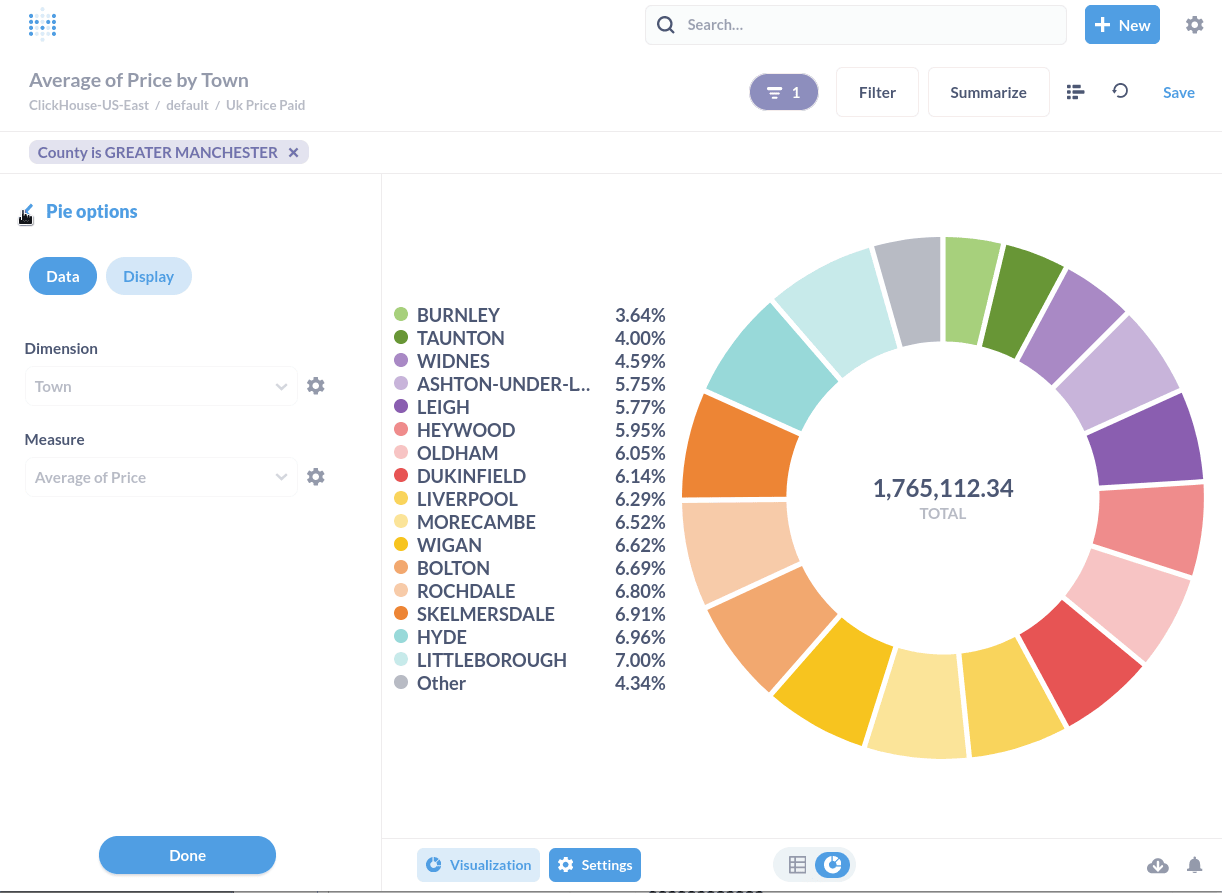
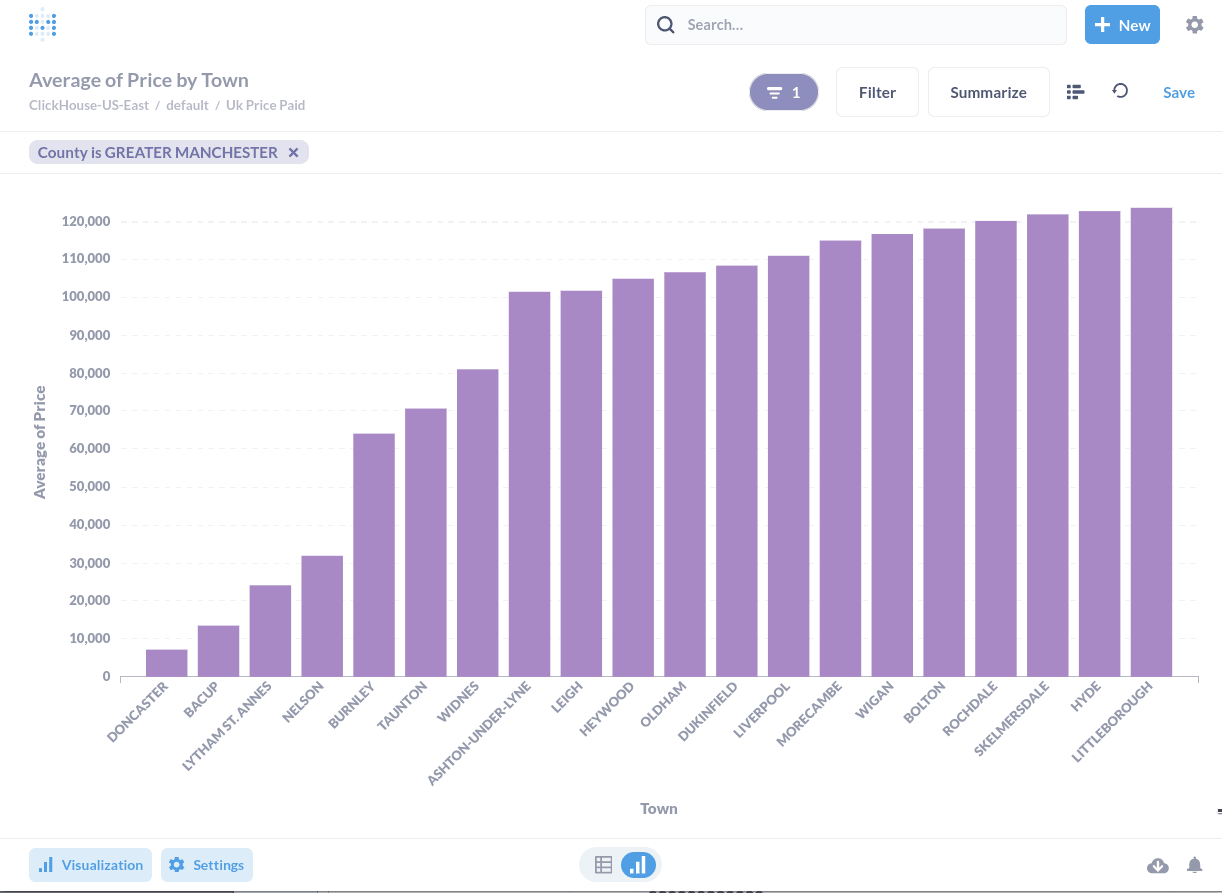
In this guide you will ask some questions of your ClickHouse data with Metabase and visualize the answers. One of the answers will look like this:
Gather your connection details
To connect to ClickHouse with HTTP(S) you need this information:
| Parameter(s) | Description |
|---|---|
HOST and PORT |
Typically, the port is 8443 when using TLS or 8123 when not using TLS. |
DATABASE NAME |
Out of the box, there is a database named default, use the name of the database that you want to connect to. |
USERNAME and PASSWORD |
Out of the box, the username is default. Use the username appropriate for your use case. |
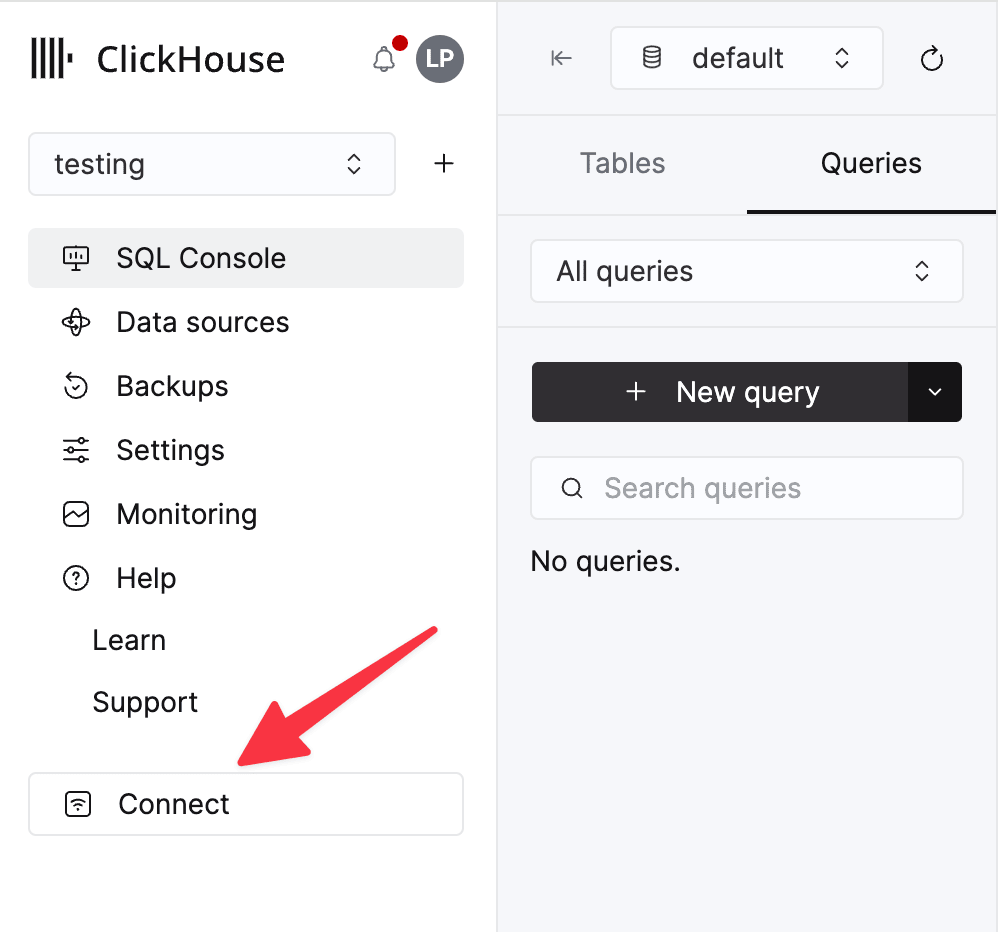
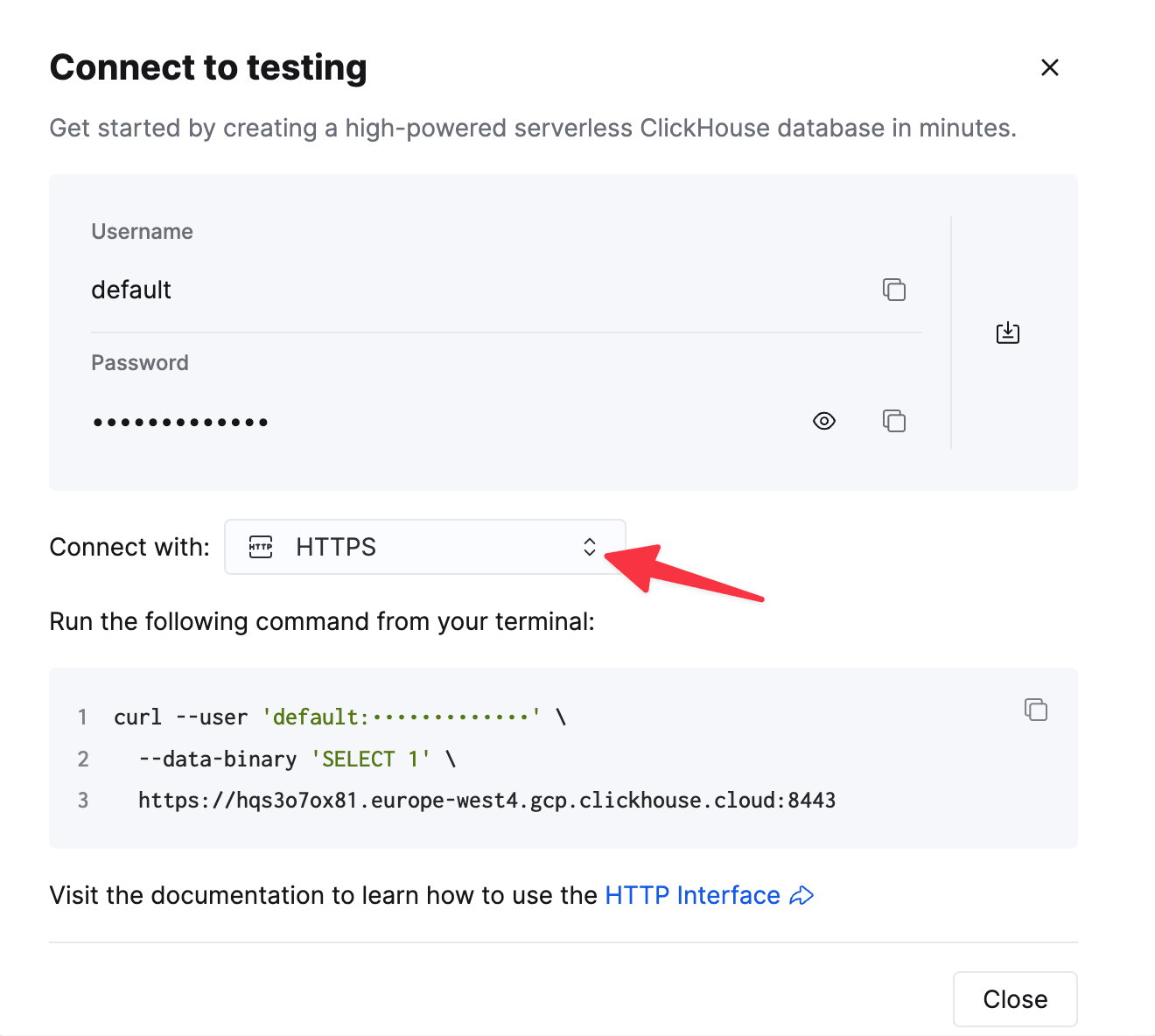
The details for your ClickHouse Cloud service are available in the ClickHouse Cloud console. Select a service and click Connect:
Choose HTTPS. Connection details are displayed in an example curl command.
If you’re using self-managed ClickHouse, the connection details are set by your ClickHouse administrator.
Download the ClickHouse plugin for Metabase
-
If you don’t have a
pluginsfolder, create one as a subfolder of where you havemetabase.jarsaved. -
The plugin is a JAR file named
clickhouse.metabase-driver.jar. Download the latest version of the JAR file at https://github.com/clickhouse/metabase-clickhouse-driver/releases/latest -
Save
clickhouse.metabase-driver.jarin yourpluginsfolder. -
Start (or restart) Metabase so that the driver gets loaded properly.
-
Access Metabase at http://hostname:3000. On the initial startup, you will see a welcome screen and have to work your way through a list of questions. If prompted to select a database, select “I’ll add my data later”:
Connect Metabase to ClickHouse
-
Click on the gear icon in the top-right corner and select Admin Settings to visit your Metabase admin page.
-
Click on Add a database. Alternately, you can click on the Databases tab and select the Add database button.
-
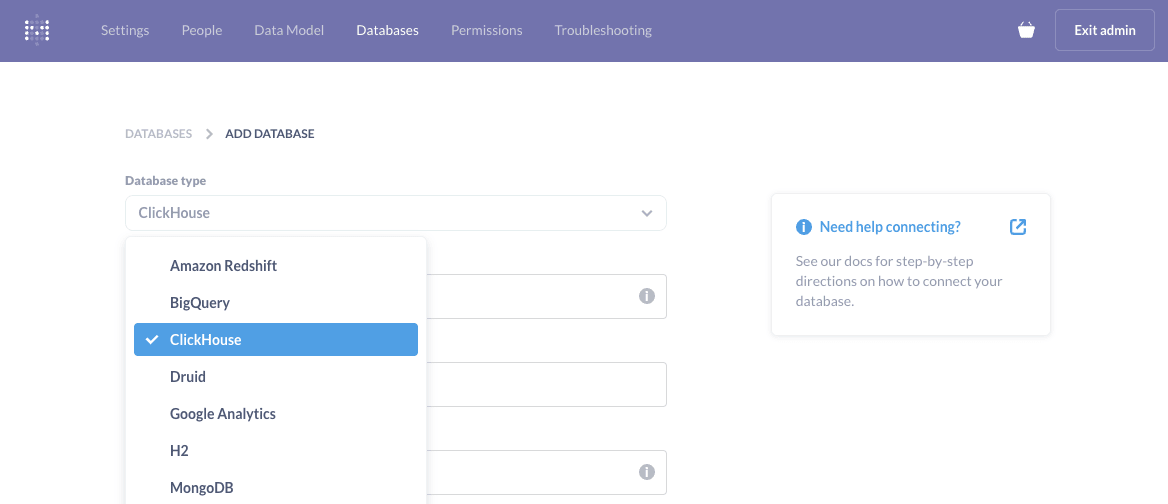
If your driver installation worked, you will see ClickHouse in the dropdown menu for Database type:
-
Give your database a Display name, which is a Metabase setting - so use any name you like.
-
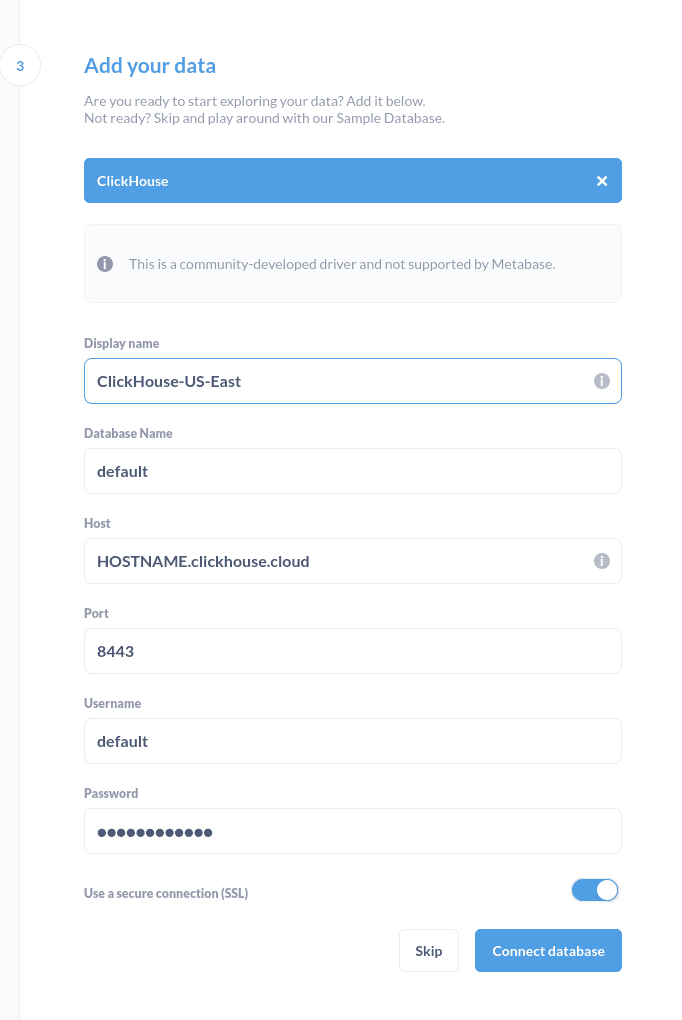
Enter the connection details of your ClickHouse database. Enable a secure connection if your ClickHouse server is configured to use SSL. For example:
-
Click the Save button and Metabase will scan your database for tables.
Run a SQL query
-
Exit the Admin settings by clicking the Exit admin button in the top-right corner.
-
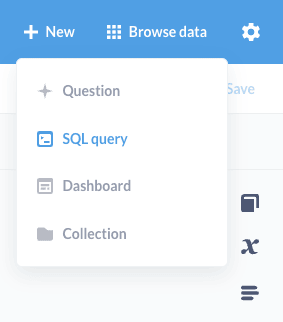
In the top-right corner, click the + New menu and notice you can ask questions, run SQL queries, and build a dashboard:
-
For example, here is a SQL query run on a table named
uk_price_paidthat returns the average price paid by year from 1995 to 2022: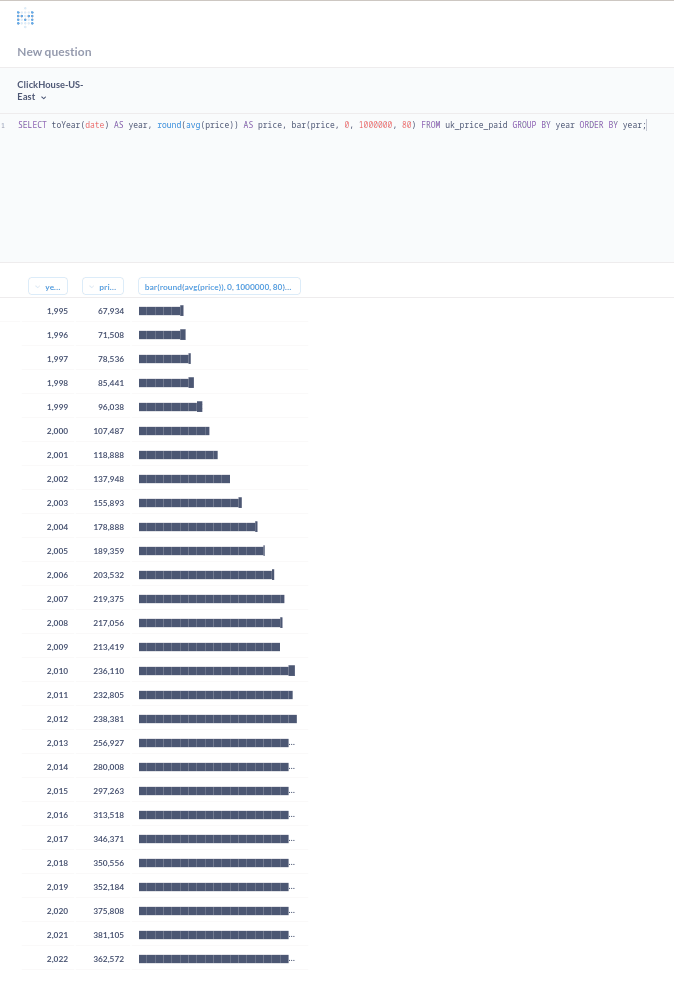
Ask a question
-
Click on + New and select Question. Notice you can build a question by starting with a database and table. For example, the following question is being asked of a table named
uk_price_paidin thedefaultdatabase. Here is a simple question that calculates the average price by town, within the county of Greater Manchester: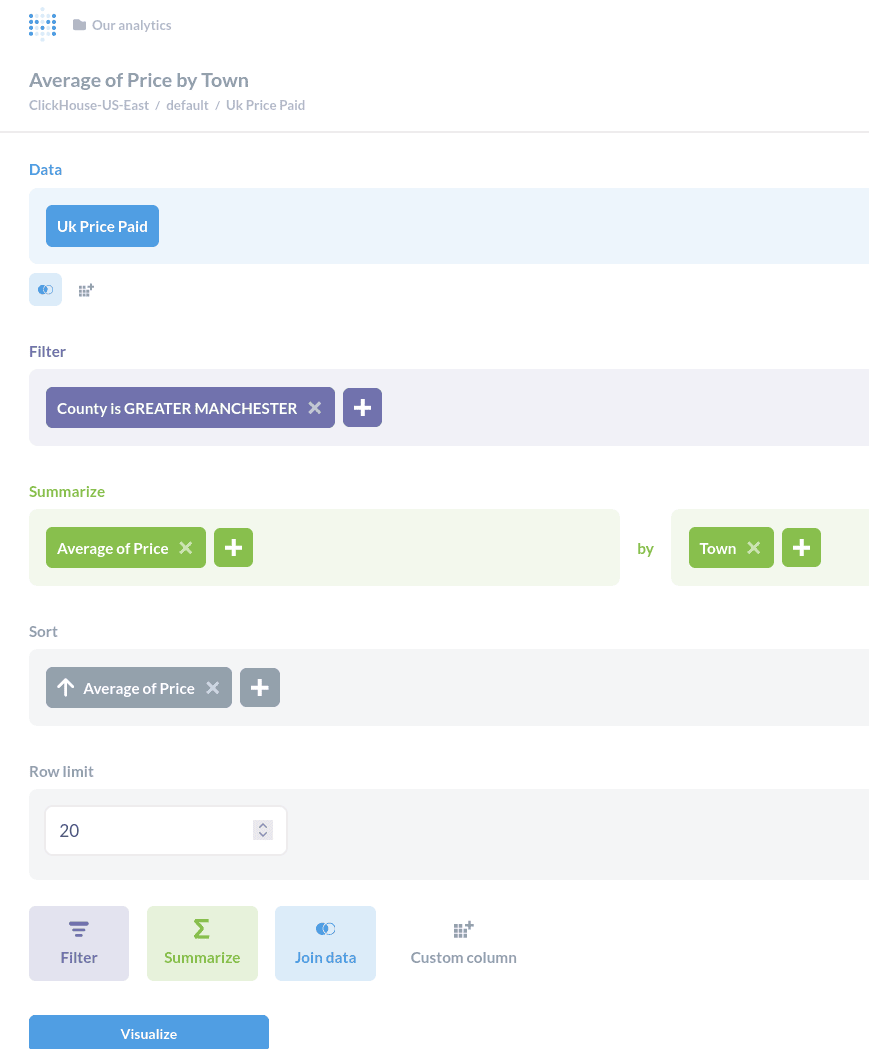
-
Click the Visualize button to see the results in a tabular view.
-
Below the results, click the Visualization button to change the visualization to a bar chart (or any of the other options available):
Learn more
Find more information about Metabase and how to build dashboards by visiting the Metabase documentation.